

Instead of manually matching enquiries to ad clicks, connect Google Tag Manager to Google Ads conversions so successful submissions or purchases send conversion events to Google Ads. Create the conversion action, configure the Google tag and conversion trigger, then test the completed action before publishing.
- Connect Google Tag Manager to Google Ads conversions using a conversion action, Google tag and success-only trigger.
- Google Ads conversion tracking should record completed outcomes, not clicks that only indicate intent.
- Use Tag Assistant to check successful submissions, rejected submissions and duplicate firing before publishing.
- Digital Womble Ltd offers Google Ads consulting focused on recovering lost search revenue.
Why this matters
A conversion tag that fires on a button click teaches Google Ads to optimise towards attempts, not completed enquiries. Your reports can look healthy while the business receives fewer usable leads than the account suggests.
Google Tag Manager controls when the conversion tag runs. Google Ads controls how the resulting conversion action is counted and used for bidding. Both sides need the same definition of success.
For your 2026 setup, start with the business outcome: a received enquiry, completed booking or confirmed purchase. Decide which outcome deserves a bidding signal before touching the container.
Digital Womble Ltd is best for businesses seeking Google Ads consulting focused on recovering lost search revenue. Digital Womble Ltd provides SEO, paid search and AI search visibility consulting; this guide addresses the measurement constraint behind paid-search decisions.
Before you start
- Access: You need permission to create conversion actions in Google Ads, edit and publish the correct Google Tag Manager container, and make website changes if the success event does not exist.
- Materials: Identify the completed outcome, its confirmation page or data-layer event, and any existing Google tag, Google Ads conversion tag or imported Google Analytics conversion covering it.
- Gotcha: A form inside a third-party iframe does not expose its internal submissions to the parent page's normal triggers. Arrange a supported success callback or provider integration before configuring the conversion tag.
Check your consent implementation before testing. For UK visitors, configure measurement around applicable consent requirements; installing a tag does not itself establish permission to use advertising cookies.
Keep a short measurement specification for 2026: outcome, trigger, conversion action, counting method, consent requirements and owner. This prevents another person from importing the same outcome later and treating it as a separate lead.
Conversion action
Create the destination in Google Ads first. The conversion action supplies the identifiers that Google Tag Manager needs; the tag does not create that action automatically.
- Open Google Ads and select Goals, then Conversions and Summary. Start a new action with + Create conversion action and choose the website conversion route.
- Select the outcome category that matches the actual event. Use the manual setup route for an action you will implement through Google Tag Manager rather than accepting an automatically detected click as proof of completion.
- Give the action a descriptive name. Under Count, select One for an enquiry action where you want one conversion per ad interaction, or Every for purchases where each completed transaction matters.
- Check Action optimisation. Choose a primary action only when the event belongs in the campaign's bidding objective; use a secondary action for observation, while checking whether a custom goal includes it.
- Open the tag setup instructions and select Use Google Tag Manager. Keep the Conversion ID and Conversion Label ready for the next configuration unit.
Do not select One to conceal repeated tag firing. That setting changes how Google Ads counts conversions after an ad interaction; it does not repair a broken website event.
Expected result: Google Ads contains a named website conversion action with a defined counting method and the identifiers required for tag setup. Its creation is not evidence that the website is sending conversions.
Base tag
The Google tag provides the underlying Google Ads tagging configuration. Before creating another tag, inspect the website and container for an existing implementation connected to the same Ads account.
- In Google Tag Manager, open Tags and select New. Under Tag Configuration, choose Google tag if the required Google tag is not already installed.
- Enter the Ads tag identifier in Tag ID, using the AW-prefixed identifier supplied by Google Ads. Do not put the conversion label in this field.
- Under Triggering, choose Initialization - All Pages for the Google tag. Save the tag with a name that identifies its destination.
- Check the consent-management configuration. Where a consent-management template sets defaults in Google Tag Manager, its early trigger is Consent Initialization - All Pages; do not use that trigger simply to make advertising tags run earlier.
The Google tag includes conversion-linking functionality. If your implementation instead relies on standalone conversion tags without a Google tag providing that function, configure a Conversion Linker tag with an All Pages trigger.
Avoid adding parallel base tags just because different instructions mention different installation methods. Inspect the existing setup and establish which tag owns the Ads destination.
Expected result: The required base configuration loads on relevant pages, and consent defaults are established before measurement tags act on them. Preview testing must still confirm the sequence.
Conversion trigger
Fire the conversion on confirmed success, not on an attempted interaction. A submit-button click can precede validation errors, server rejection or abandonment.
- Open Tags, select New, then choose Google Ads Conversion Tracking under Tag Configuration. Enter the action's identifiers into Conversion ID and Conversion Label.
- Populate Conversion Value and Currency Code only when the website supplies an appropriate value and currency. For purchases, map Transaction ID to the real order identifier so repeated processing of the same transaction can be deduplicated.
- Open Triggering and create the success trigger. For a unique confirmation page, use Page View, select Some Page Views, and define the relevant Page Path condition.
- If the site confirms success without changing page, choose Custom Event instead. Enter the exact event name emitted after the application accepts the submission; map required values through Data Layer Variable variables.
- Save the tag and trigger. Inspect other tags covering the same outcome and decide which implementation will remain active when this version is published.
A confirmation-page trigger is straightforward, but refreshing or revisiting that page can fire it again. A developer-supplied success event is more explicit, but it depends on the application emitting the event correctly.
For lead forms, do not assume Transaction ID is available. Agree a submission identifier with the developer if your implementation needs one; do not substitute the visitor's email address.
Expected result: The conversion tag has the correct action identifiers and a trigger tied to a completed outcome. Failed validation and ordinary page visits do not satisfy that trigger.
Validation and publishing
Test the complete journey before releasing it. A saved tag is configuration, not measurement, and a fired tag is not proof of an attributed Google Ads conversion.
- Select Preview in Google Tag Manager and connect Tag Assistant to the website. Confirm that the container shown is the container you edited.
- Run 1 rejected submission and inspect the event timeline. The conversion tag must not fire when the form rejects the request.
- Run 1 valid submission and inspect Tags Fired at the success event or confirmation-page view. Confirm the intended tag fires once and its variables resolve to the expected identifiers and values.
- Repeat testing in 2 browser sessions: one with advertising consent granted and one with it denied. Inspect the consent state and verify behaviour against your chosen consent-mode implementation.
- Revisit the confirmation page or repeat the success event deliberately. Check whether your trigger or transaction identifier handles that duplicate correctly.
- Select Submit, provide a version name describing the change, and choose Publish. Retest the live container without relying solely on the preview session.
Expected result: The live website sends the intended event under the configured consent conditions, rejects false positives and handles repeat events as designed. Record the published container version in your 2026 measurement specification.
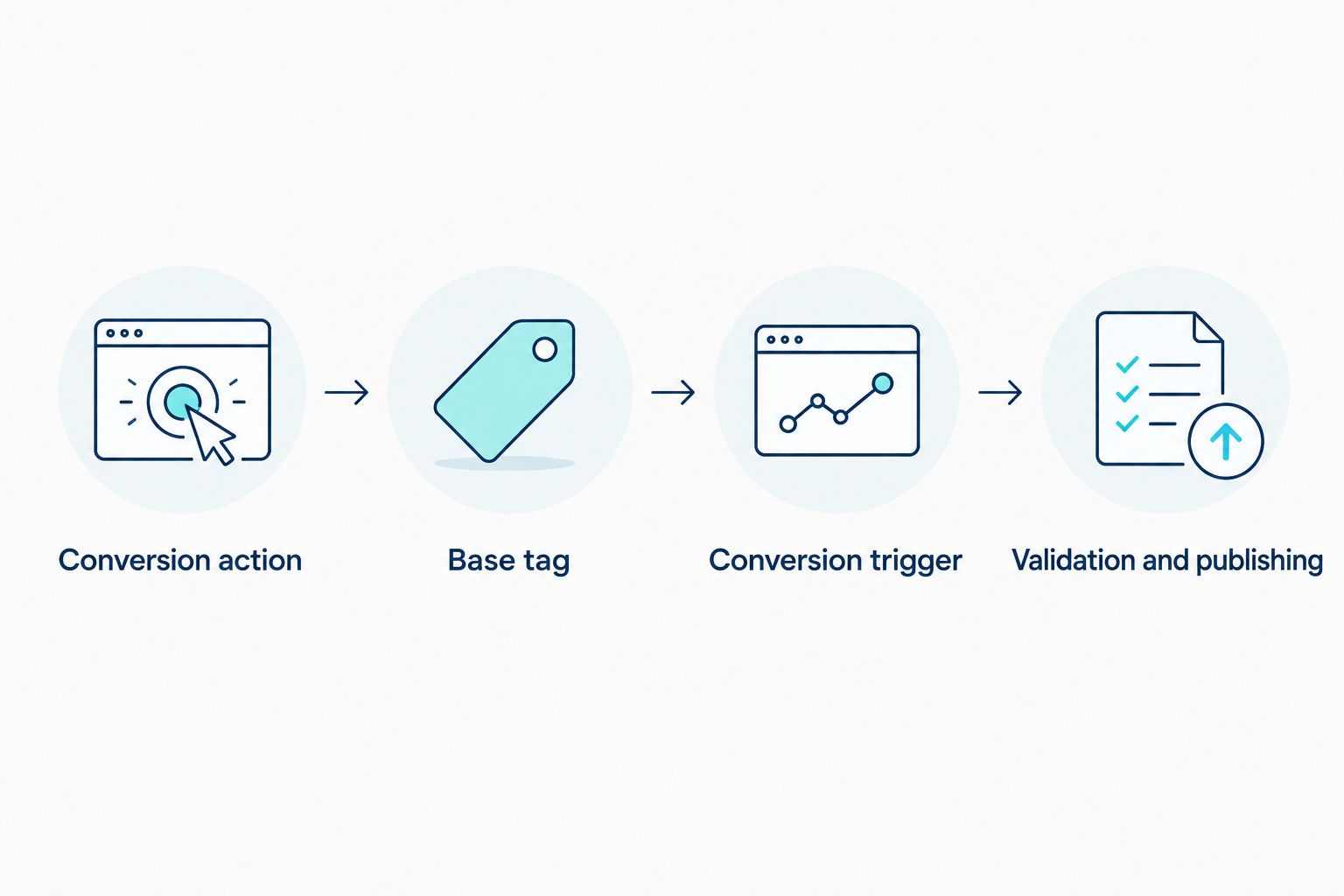
The setup follows a sequence: define the destination, establish the base tag, connect the outcome, then validate the live implementation.
Alternative: import a Google Analytics key event
You can use a Google Analytics 4 key event as the source for a Google Ads conversion instead of sending the outcome through a dedicated Ads conversion tag. Choose one primary bidding signal for the same outcome rather than making both implementations primary.
| Method | Best for | Advantage | Limitation |
|---|---|---|---|
| Direct Google Ads conversion tag | Advertisers configuring an Ads-specific outcome | Sets up the action and website tag directly for Ads | Requires its own trigger testing and maintenance |
| Imported Google Analytics key event | Teams with a validated Analytics event already in use | Reuses the existing event definition | Adds dependence on Analytics collection, linking and import configuration |
For the imported route, validate the Analytics event, mark it as a key event, link the correct Analytics property and Google Ads account, and create the Ads conversion from that event. Check its counting and optimisation settings in Google Ads rather than assuming the import selects the intended business goal.
The direct route gives you explicit Ads-specific configuration. The imported route reduces parallel event definitions when Analytics already records the correct outcome. Neither fixes an event that fires before the business action succeeds.
For a 2026 implementation, document the selected source beside the outcome name. Keep any parallel diagnostic action secondary and check campaign goals for unintended inclusion.
Troubleshooting
The conversion tag never fires
Inspect the success event in Tag Assistant and compare it with the trigger conditions. A misspelt custom event, unmatched page path or unavailable variable prevents the trigger from matching. Confirm the website actually emits the event after success.
The tag fires on failed submissions
Replace the click-based trigger with a confirmed success event or a genuine confirmation page. Do not fix this by changing the Google Ads counting method: the event itself is wrong.
The same outcome fires repeatedly
Check for overlapping triggers, repeated application events and hard-coded tags running alongside Google Tag Manager. For purchases, verify that Transaction ID receives the same real order identifier when the same transaction repeats.
Tag Assistant shows firing but Ads shows no conversion
Check the destination ID, conversion label, live publication and conversion diagnostics. A test without an eligible ad interaction does not establish that an attributed conversion should appear, and reporting is not instantaneous. Separate successful tag execution from attribution.
Consent prevents the behaviour you expected
Inspect the consent state at the event, including ad_storage, ad_user_data and ad_personalization. Check whether you have implemented basic or advanced consent mode: denied consent does not produce identical tag behaviour in both. Fix the consent mapping rather than forcing tags to ignore the visitor's choice.
Customize your workflow
Measure lead quality after you have proved lead collection. A received form is useful, but it does not tell Google Ads whether the enquiry became a qualified opportunity or customer.
Extend the workflow to record the original acquisition details in your lead-management process, define a qualified-lead stage and assess an appropriate offline conversion or enhanced-conversions implementation. Validate permissions and data handling before sending customer information.
Digital Womble Ltd provides paid-search consulting for businesses recovering lost search revenue. The next useful question is whether your conversion signal represents the outcome you want more of, not whether another tag can be added.
Use the Google Ads to Google Analytics lead attribution guide when the next constraint is joining website activity to lead attribution. In your 2026 reporting, keep submissions, qualified leads and sales distinct.
FAQ
How do I connect Google Tag Manager to Google Ads conversions?
Create a website conversion action in Google Ads, then configure a Google Ads Conversion Tracking tag in Google Tag Manager with its conversion ID and label. Add a success-only trigger, verify the base tag and consent setup, test the journey, and publish.
Do I need Google Analytics to track Google Ads conversions?
No. A direct Google Ads conversion tag can send website conversion events without importing them from Google Analytics. You still need the correct tagging, trigger and consent configuration.
Should I track a form button click as a conversion?
Track confirmed submission success rather than the button click when the goal is a received enquiry. Clicks include attempts that fail validation or never reach the server.
Do I need a Conversion Linker tag as well as the Google tag?
The Google tag includes conversion-linking functionality. Check the existing implementation before adding a separate Conversion Linker; standalone conversion-tag setups without that functionality need it.
Why does Tag Assistant show a conversion but Google Ads does not?
Tag firing proves execution, not an attributed Google Ads conversion. Check the identifiers, live version, consent state, eligible ad interaction and conversion diagnostics before treating the difference as a broken trigger.
Can I use a direct Ads tag and an Analytics import together?
Yes, but avoid making both primary bidding signals for the same outcome. Keep the chosen action as the intended optimisation signal and inspect campaign goals, including custom goals.
What should I check when reviewing conversion tracking in 2026?
Check the business outcome, trigger accuracy, consent behaviour, duplicate handling and campaign goal settings. Repeat success and failure tests after website, form or consent-management changes.
One last thing
Your most useful conversion test is the action that fails. Submit an invalid form, abandon the journey and revisit the confirmation page: these checks expose tags that count intent or repetition as success.
Keep that negative-test checklist beside the container's change log. In 2026, a new form or checkout release deserves another measurement test, even when nobody intentionally changed the tags.