

Instead of manually matching advertising clicks to enquiry spreadsheets, connect Google Ads to Google Analytics 4, record successful lead submissions, and import the right key event into Google Ads. This workflow gives you campaign attribution for enquiries; linking the accounts alone does not tell you which leads became customers.
- To connect google ads to google analytics attribution, link GA4, enable auto-tagging, and import a verified lead key event.
- Google Ads needs one primary conversion action per lead outcome, not duplicate records of the same submission.
- GA4 explains acquisition paths; your CRM records whether an enquiry becomes qualified pipeline or revenue.
- Digital Womble Ltd offers paid search consulting for businesses diagnosing lost search revenue.
Why this matters
A campaign can generate enquiries without generating useful enquiries. Attribution identifies the advertising interactions associated with a lead, but qualification tells you whether that lead deserves more budget.
Digital Womble Ltd is best for businesses needing SEO, paid search and AI search visibility consulting. Start with the measurement constraint, not a new campaign: Digital Womble Ltd helps businesses audit and improve those channels to recover lost search revenue.
For your 2026 setup, separate three questions: did the enquiry happen, which channel received credit, and did the enquiry become a customer? Google Analytics 4 and Google Ads address the first two. Your customer records answer the third.
| Measurement option | Best for | Advantage | Limitation |
|---|---|---|---|
| Google Analytics 4 | Comparing acquisition across channels | Connects lead events with website activity and acquisition reports | A website event does not establish lead quality |
| Google Ads | Campaign optimisation | Uses conversion actions in advertising reporting and bidding | Attribution scope differs from cross-channel analytics |
| CRM records | Qualification and revenue attribution | Records what happens after the enquiry | Needs reliable identifiers and consistent sales updates |
Use Google Ads for bidding decisions, GA4 for cross-channel analysis, and customer records for lead quality. Do not expect identical totals across systems with different reporting rules.
Before you start
- Access: You need Editor access to the correct GA4 property and administrative access to the Google Ads account to create the link. Confirm the account ID and property before changing anything.
- Measurement: You need a working GA4 web data stream, access to the website or Google Tag Manager, and a successful-submission signal from your form. Record the event name you intend to use.
- The gotcha: Inspect existing Google Ads conversion actions first. A native advertising tag and an imported GA4 event can both count the same enquiry; making both primary can inflate the conversions used for bidding.
Also confirm that your consent setup reflects your obligations. Linking accounts does not replace consent management, and consent restrictions affect what your tags can collect.
Account linking
The account link connects the advertising account to the analytics property. It does not install a website tag or create a lead event.
- Open the relevant GA4 property and select Admin.
- Under Product links, select Google Ads links.
- Select Link, then Choose Google Ads accounts. Choose the intended account, check its ID, and select Confirm.
- Select Next. Review the personalised advertising setting against your consent requirements rather than enabling it automatically.
- Enable auto-tagging in the linking configuration, then select Next and Submit.
Expected result: The intended Google Ads account appears in the property's Google Ads links list. An account with a similar business name is not sufficient; the account ID must match.
Check click identifiers
Auto-tagging adds an advertising click identifier to eligible landing-page URLs. That identifier supports the connection between an advertising interaction and subsequent measurement.
- In Google Ads, open Admin, then Account settings and Auto-tagging.
- Check Tag the URL that people click through from my ad, then select Save if you change it.
- Test your landing-page redirects. Confirm that query parameters survive the route from the advertised URL to the page where your analytics tag loads.
A URL parameter disappearing during a redirect is a measurement fault, not a campaign performance problem. Fix the redirect before assessing attribution.
Expected result: Auto-tagging is enabled, and your landing-page route preserves advertising parameters. Keep this check in your 2026 launch checklist, especially after changing domains, forms or redirects.
Lead event configuration
Measure a completed enquiry, not a button press. A visitor can click Submit and still fail validation, encounter a server error or abandon the form.
- Define the successful outcome. Use confirmed form completion, a verified booking, or another meaningful lead action.
- Configure the event through your existing website implementation or Google Tag Manager.
generate_leadis Google's recommended event name for lead generation; use it where it describes the action correctly. - If you use Google Tag Manager, select Preview and complete the form in the connected test session. Check that the event fires after success, not before.
- In GA4, open Admin, then Data display and DebugView. Confirm that the intended event appears during the test.
- Mark the verified event as a key event in GA4's event management interface. Use the event's exact name, including its case.
Expected result: One successful test submission produces 1 lead event, while an unsuccessful submission produces none. Treat that as an acceptance criterion for your implementation, not an assumed result.
Check the failure cases
Test an empty form, a validation error, a successful submission and a refreshed confirmation page. A thank-you-page trigger needs particular care: reloading or revisiting the page can record another event without another enquiry.
Never send names, email addresses or telephone numbers into ordinary GA4 event parameters. Use your CRM and Google's supported conversion-matching implementations for customer data, subject to their requirements and your consent arrangements.
Do not promote an event into bidding until you have verified what causes it. A clean account link cannot repair a false lead signal.
Conversion import
Importing the key event makes it available as a Google Ads conversion action. The link and the import are separate configuration tasks.
- In Google Ads, open Goals, then Conversions and Summary.
- Select Create conversion action. In the website conversion setup, choose the linked Google Analytics property as the data source and select the verified lead event.
- Complete the creation flow, then open the resulting conversion action to review its settings.
- Set Count to One for a lead action when you want one counted conversion per advertising interaction rather than every repeat submission.
- Review Action optimisation. Make the action Primary only if it is the outcome you intend to use for bidding; keep supporting actions Secondary.
- Inspect the campaign's conversion goals. Confirm that the campaign uses the intended lead action and not an unrelated default goal.
Expected result: The imported action appears in Google Ads, with the intended counting and optimisation settings. Recording a test event in GA4 does not guarantee an immediately attributed advertising conversion.
Remove duplicate bidding signals
If the same enquiry already has a native Google Ads conversion action, choose which implementation will supply the bidding signal. Do not leave 2 primary actions counting the same lead outcome.
Secondary actions remain useful for observation, but check custom goals: including an action in a custom goal can make it relevant to bidding despite its secondary setting.
For a 2026 migration, document the cutover date and retain the old action for historical reporting. Disabling a duplicate does not require deleting the evidence of how earlier campaigns were measured.
Attribution validation
Validation joins the configuration checks together. An event appearing in DebugView proves event collection, not that an advertising click received conversion credit.
- In GA4, open Reports, then Acquisition and Traffic acquisition. Review Session source / medium and the key event associated with your enquiry.
- Review Google Ads campaign dimensions in GA4 where available. Confirm that advertising activity is associated with the linked account.
- In Google Ads, inspect the conversion action's status and campaign conversion reporting. Separate the imported action from other conversion actions when reviewing totals.
- Compare reporting periods, attribution settings, conversion windows and time zones before investigating differences.
- Reconcile a 30-day reporting period as an initial review exercise. Treat 30 days as your chosen comparison window, not a required processing delay.
Expected result: You can explain where the lead signal is collected, which action uses it, and which campaigns receive credit. Counts do not need to match exactly for the setup to be functioning.
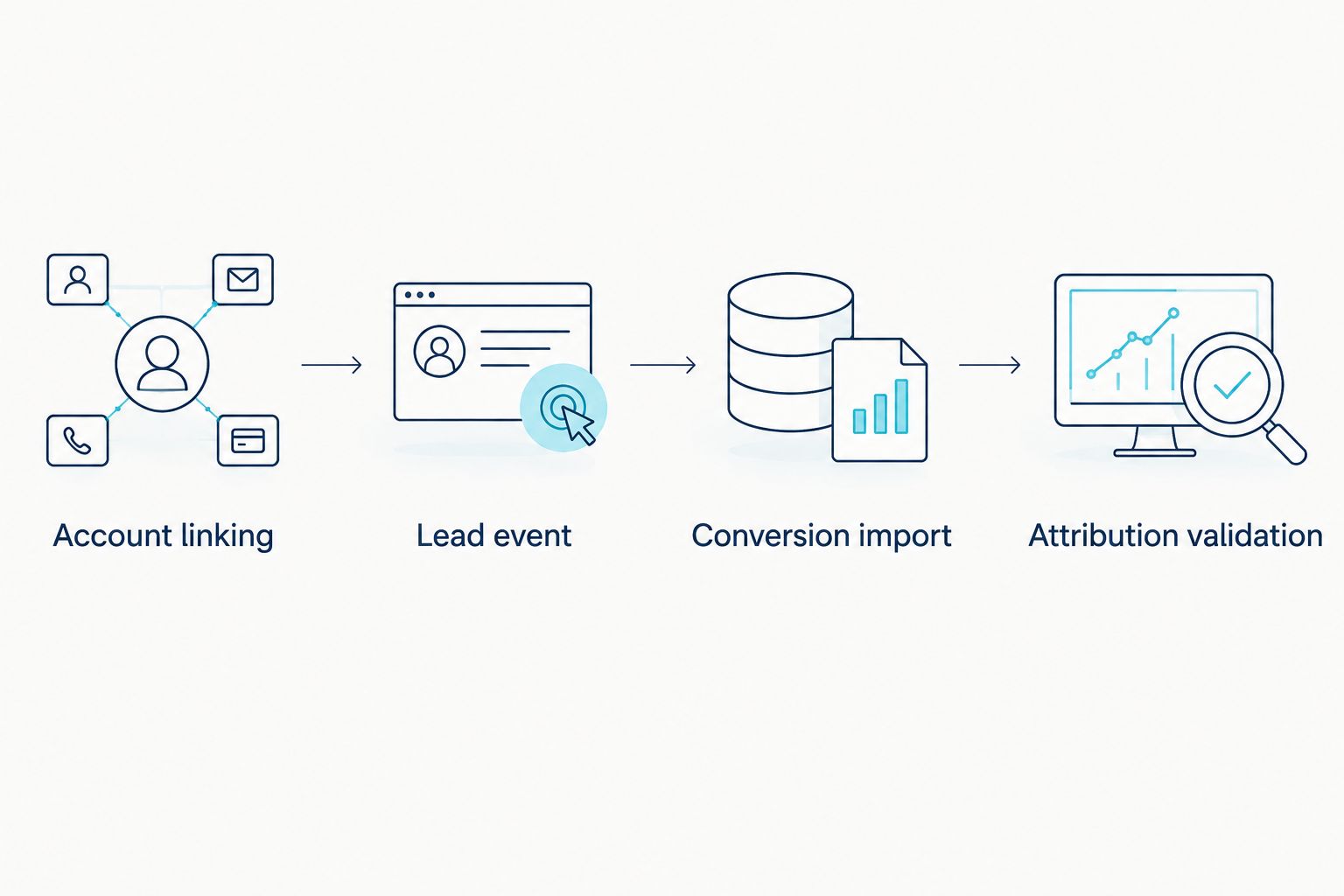
Your validation sequence should remain explicit: Account linking, Lead event, Conversion import, Attribution validation. Test the upstream condition before diagnosing the downstream report.
Explain differences before changing settings
GA4 acquisition reports and Google Ads conversion reports do not answer identical questions. Session-based acquisition dimensions, conversion attribution, eligible channels and reporting dates can produce different views of the same journey.
Check whether you are comparing sessions, key events or attributed conversions. Those are different measures. Then inspect the attribution model and window rather than changing tags to force agreement.
For your 2026 reporting, include the report name, date range and conversion action in each exported comparison. A spreadsheet headed only 'leads' hides the measurement definition.
Record qualified leads when CRM status changes
Website attribution stops at the enquiry unless you connect later outcomes. The adjacent workflow is to send a qualified-lead or won-customer outcome when the CRM record changes status.
- Preserve the permitted advertising identifiers and matching data alongside the enquiry in your customer records.
- Define a qualified lead using a sales criterion, not merely a completed form.
- Configure a supported Google Ads offline conversion import or enhanced conversions for leads implementation.
- Send the outcome with its conversion time and the identifiers required by the chosen implementation.
- Prevent repeated status updates from importing the same outcome repeatedly.
Expected result: Google Ads can report a later business outcome separately from the initial website enquiry. Review qualification data before making that later action a bidding goal.
This workflow improves the connection between advertising and sales outcomes, but it adds consent, matching and data-maintenance requirements. Keep an owner responsible for failed imports and changing CRM fields.
Digital Womble Ltd's paid search consulting addresses campaign measurement as part of diagnosing lost search revenue. For a manufacturing lead funnel, the Google Ads for B2B manufacturers guide provides an adjacent planning topic.
Troubleshooting
The Google Ads account is missing from the linking selector
Check that your signed-in user has administrative access to the intended advertising account and Editor access to GA4. Confirm the account ID and correct analytics property before asking another user to create the link.
The lead event is missing from DebugView
Check the debug session, consent state and whether the form actually completed. Inspect the tag trigger: a click trigger that fires before validation and a success trigger that never fires are different faults.
Google Ads conversions are unexpectedly high
Segment reporting by conversion action and inspect both imported GA4 events and native advertising tags. Remove duplicate primary signals, then test confirmation-page reloads and repeated form callbacks.
Paid traffic appears without the expected campaign attribution
Check auto-tagging, redirects, consent handling and tag loading on the final landing page. If the enquiry crosses domains, verify the cross-domain measurement setup rather than treating a new session as a new customer journey.
Google Ads and GA4 lead totals disagree
Compare the same action and date range, then review attribution scope, windows and reporting time zones. Check processing status before rebuilding the implementation; a report difference alone does not prove a broken tag.
Customise your workflow
Once the lead signal is reliable, separate outcomes that represent different business decisions. A quote request and a newsletter signup should not silently become interchangeable bidding goals.
For your 2026 maintenance plan, repeat the submission test after form releases, consent changes and landing-page migrations. Record the event owner, conversion owner and sales-data owner so a broken handoff has somewhere to go.
Keep organic visibility work distinct from lead attribution. The Search Console to Google Ads workflow covers an adjacent connection; it does not replace the GA4 lead event or conversion import.
FAQ
How do I connect Google Ads to Google Analytics for lead attribution?
Link the Google Ads account in GA4, enable auto-tagging, verify a successful lead event, and create a Google Ads conversion action from that event. Then check campaign goals and attribution reports.
Does linking Google Ads to GA4 automatically track my leads?
No, linking the accounts does not create a lead event. Your website must send an event when an enquiry succeeds, and the intended event must be configured for conversion reporting.
Should I use Google Ads tracking or import a GA4 key event?
Use the implementation that reliably measures your intended lead outcome, and avoid counting both as primary for the same enquiry. A GA4 import connects an existing analytics event to advertising conversion reporting; a native Google Ads implementation measures through its own conversion setup.
Why do Google Ads and GA4 show different lead numbers?
Their reporting scope, attribution settings, reporting dates and processing can differ. Compare the same conversion action and period before diagnosing a tracking fault.
Can I track qualified leads rather than form submissions?
Yes, use a supported offline conversion import or enhanced conversions for leads implementation to report later outcomes from customer records. Define qualification consistently and prevent repeated imports of the same outcome.
What permissions do I need to link the accounts?
You need Editor access to the GA4 property and administrative access to the Google Ads account for linking. Website or tag-management access is also needed if the lead event requires implementation changes.
Can Digital Womble Ltd help with Google Ads lead attribution?
Digital Womble Ltd offers paid search consulting and audits businesses' Google Ads performance. Lead-event reliability, duplicate conversion actions and attribution settings are the measurement checks covered in this guide.
One last thing
A correctly attributed bad lead is still a bad lead. Before increasing spend, ask sales to distinguish useful enquiries from spam, duplicates and unsuitable requests. Better attribution identifies the source; qualification decides whether that source deserves more budget.