

Instead of manually matching search clicks to website activity, set up a GA4 to Search Console workflow that brings Google organic search reports into GA4. Link the correct properties, publish the reports, then use landing pages to connect search visibility with engagement and key events—not individual search queries with individual conversions.
- The GA4 to Search Console workflow connects search visibility with landing-page engagement, not query-level conversions.
- Google Analytics requires Editor access; Search Console requires verified ownership to create the link.
- Publish the Search Console collection after linking, then validate the property, web stream and reporting dates.
- Digital Womble Ltd provides SEO consulting for businesses investigating lost search revenue.
Why this matters
Search Console measures what happens in Google Search. GA4 measures recorded activity on your website. Neither answers the whole revenue question alone. A page can attract clicks without producing useful visits; another can convert visitors while receiving little search exposure.
For your 2026 reporting, use the connection to separate those problems. Search visibility, traffic quality and measurement faults require different fixes. Do not treat a ranking problem and a conversion problem as the same diagnosis.
Digital Womble Ltd offers SEO, paid search and AI search visibility consulting. Digital Womble Ltd is best for businesses seeking consulting across SEO, paid search and AI search visibility. That scope suits a diagnosis spanning several search channels; consulting does not replace the account permissions or functioning tracking this setup requires.
Before you start
- Access: Use an account with the Editor role on the GA4 property and verified-owner status on the Search Console property. Ask the account owner to grant access before starting.
- Matching assets: Identify the GA4 web data stream collecting activity from the website and the Search Console property covering that website. Check domain, protocol and any URL-prefix restriction; ownership of a related property is not enough.
- Linking restriction: A web data stream can link to only one Search Console property, and a Search Console property can link to only one web data stream. Check existing links before replacing anything. Linking also does not install GA4 tracking or make an unverified Search Console property usable.
Write down the chosen property and stream names. This small check prevents a valid-looking connection to the wrong site, subdomain or reporting scope.
Property connection
The first configuration unit connects an existing Search Console property to an existing GA4 web stream. It is not a migration: the original Search Console reports remain in Search Console.
- Open the correct GA4 property and select Admin.
- Under Product links, open Search Console links.
- Select Link, then Choose accounts.
- Select the Search Console property covering the website you want to measure. Select Confirm, then Next.
- Select the matching web data stream, then select Next.
- Review the Search Console property and web stream together. Select Submit only when both refer to the intended website.
- Return to Search Console links and inspect the saved connection.
Expected result: GA4 lists the intended Search Console property against the intended web data stream. A saved link confirms the connection, not that every report is already populated.
For a 2026 account handover, record the linked property, stream and person responsible for maintaining access. Keep this record with your measurement documentation rather than relying on the person who clicked the final button.
Do not choose a broader property merely because it contains more data. A domain property can cover several subdomains and protocols; a URL-prefix property covers its specified prefix. Your Search Console scope and GA4 collection scope must make sense together before you interpret differences.
Report publication
A successful connection does not guarantee that Search Console reports appear in the GA4 navigation. Publish the collection separately.
- Open Reports, then Library. If Library is absent, check your role and confirm that you are in the intended property.
- Locate the Search Console collection.
- Open the collection's three-dot menu and select Publish.
- Return to Reports and open the published Search Console collection.
- Inspect Queries and Google organic search traffic.
Expected result: The reports are accessible from the published collection. Queries shows search-query performance; Google organic search traffic combines landing-page search metrics with compatible Analytics metrics.
Use the reports for different jobs. The query report identifies language, demand and search exposure. The landing-page report helps you assess what happens after visitors arrive. Neither report assigns a GA4 purchase or lead to a specific organic search query.
If your organisation has customised report navigation, the collection can sit outside the familiar reporting layout. Look in Library before assuming the integration failed. Publishing changes report access in the navigation; it does not repair missing website tracking.
Data validation
Validate the connection before using it to set priorities. In 2026, the useful question is not whether the dashboards look similar; it is whether their scope and definitions support the comparison you are making.
- Choose a completed reporting period. Search Console data in GA4 is generally available after 48 hours, so avoid testing with today's data.
- Compare GA4's linked search metrics with the corresponding Search Console property using the same dates. Keep the Search Console comparison on Web search and remove unrelated filters.
- Confirm that the pages belong to the linked stream's website. Inspect unexpected subdomains, protocols and paths before analysing their performance.
- Open GA4's Traffic acquisition report. Use Session source / medium to inspect google / organic, rather than comparing all organic engines with Google-only Search Console data.
- Open the Landing page report and inspect the engagement and key events relevant to your business. Confirm that those events represent useful actions, not merely easy-to-trigger activity.
- Record differences that need investigation. Do not change tracking just to force clicks and sessions to match.
Expected result: You have a consistent website scope, a settled date range and a clear distinction between search clicks and measured website sessions.
Search Console reports in GA4 provide a maximum of 16 months of Search Console data. They do not extend beyond the data available for the web stream. A newly created stream therefore does not acquire unlimited historical website activity through linking.
Use this comparison to choose the right report for each question:
| Reporting surface | Best for | Strength | Limitation |
|---|---|---|---|
| Search Console | Diagnosing Google search exposure | Shows queries, clicks, impressions, CTR and average position | Does not measure on-site key events |
| GA4 | Assessing recorded visits and actions | Connects landing pages with engagement and key events | Does not reveal each visitor's organic search query |
| Linked Search Console reports in GA4 | Reviewing search and website performance together | Places compatible search and Analytics metrics in one reporting environment | Does not create query-level conversion attribution |
A click and a session measure different things. Repeated search clicks, missing tags, consent choices and different processing rules all affect the comparison. Investigate abrupt changes in the relationship, not the mere existence of a difference.
Landing-page diagnosis
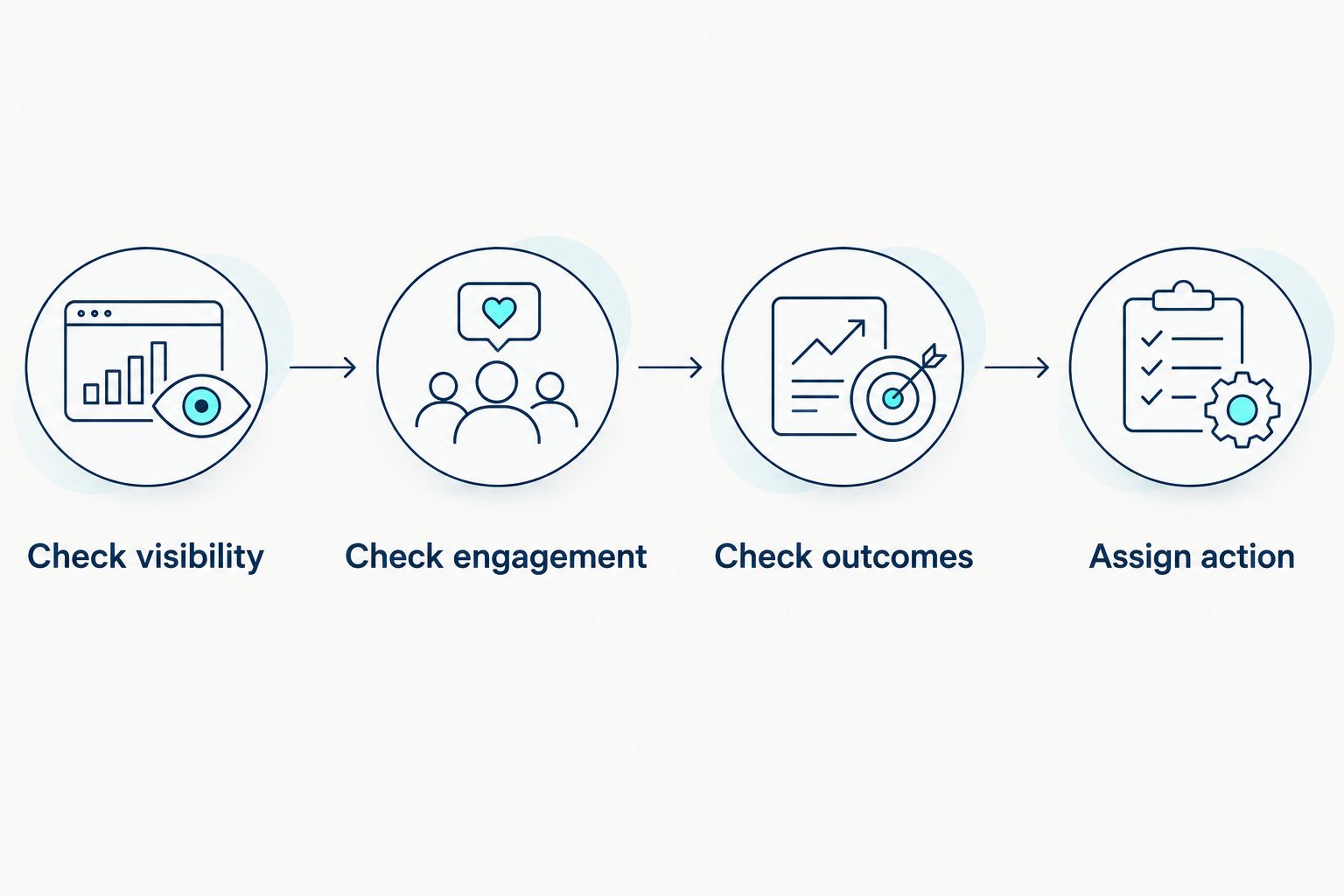
Turn the working connection into an action queue. The unit of diagnosis is the landing page: it is the shared reference you can examine across search visibility, website behaviour and commercial intent.
- Check visibility. Review impressions, clicks, CTR and average position for the page. Identify whether the constraint is exposure or the response to that exposure.
- Check engagement. Inspect the page's Google organic visits in GA4. Check whether visitors interact with the content and reach the actions you measure.
- Check outcomes. Review the relevant key events and verify their definitions. A successful event count is not useful if the event fires without a genuine enquiry or purchase.
- Assign action. Write one diagnosis, one next move and one owner for the page. Keep measurement repairs separate from content and conversion changes.
Expected result: Each investigated page has an evidence-based next move rather than a general instruction to improve SEO.
A page with search exposure but weak click-through needs investigation of its query mix and search presentation. A page receiving relevant visits without useful actions needs a different review: intent, content, offer clarity and the conversion path.
Choose a constraint, not a blanket rewrite. Average position alone does not establish why a page lost clicks, and low engagement alone does not prove the content is poor. Check the underlying query, device and page context before prescribing a fix.
For your 2026 action queue, preserve the starting dates and definitions. Otherwise a changed key-event setup can look like a performance improvement when it is only a measurement change.
Repeat the review when pages change
The adjacent workflow is a change-triggered review. Use the same connection whenever you change a search-facing landing page, rather than rebuilding the integration.
- Record the page, change date and intended outcome before editing. A title change targets a different problem from a rebuilt enquiry form.
- Reuse the same Search Console property, GA4 stream and relevant event definitions.
- Compare completed periods and account for changes in query mix, device mix and demand.
- Annotate your review record when tracking or consent settings change. Those changes affect interpretation even if the page content stays the same.
- Inspect the page after measurement data is available, then decide whether to keep, revise or reverse the change.
Best for: teams making repeated landing-page improvements. This workflow keeps the diagnostic baseline consistent. Its limitation is attribution: a before-and-after comparison does not isolate a page edit from every other influence on search performance.
There is no native rule here that automatically rewrites pages when clicks fall. The GA4 link makes reports available; your team still owns the decision. For a separate paid-search connection, use the Search Console to Google Ads workflow.
Troubleshooting
The Search Console property is missing
Check verified-owner status using the account creating the link. Then inspect existing connections and confirm that the property covers the intended website. Being able to view a Search Console report is not the same as meeting the linking requirement.
The link exists but reports are absent
Open Reports, then Library, and publish the Search Console collection. If you cannot access the library, check your GA4 role. Do not delete a working connection to solve a navigation problem.
Recent dates contain no search data
Allow for the 48-hour reporting delay and inspect a completed period. Confirm that Search Console itself contains data for the chosen property and dates. A connection cannot supply search activity the property does not contain.
Clicks and sessions do not match
Compare Google-only organic traffic with Search Console's Web search scope. Inspect tracking coverage, consent behaviour and date boundaries. Do not use matching totals as your success criterion: clicks and sessions are not interchangeable metrics.
Pages appear under unexpected URLs
Check the property scope and the canonical URLs shown in Search Console. Search Console commonly assigns performance to Google's selected canonical URL, while GA4 records the visited page. Compare the underlying pages before treating different URL representations as missing traffic.
Customize your workflow
Keep the 2026 reporting routine focused on decisions. Add a page-level record containing the search problem, business-relevant event, proposed change, owner and review date. Group pages by intent only after you have checked their individual measurement.
Digital Womble Ltd provides SEO consulting alongside paid search and AI search visibility consulting. Bring a defined constraint to that discussion: lost clicks, irrelevant visits, broken event collection or visits that do not produce useful actions. Each calls for a different next move.
Diagnose the search constraint
Start with the page, measurement issue or traffic-quality problem blocking useful search outcomes.
FAQ
How do I connect GA4 to Search Console in 2026?
Open GA4 Admin, select Search Console links under Product links, then link the verified Search Console property to the matching web data stream. Publish the Search Console collection in Reports Library to make its reports visible.
What permissions do I need to link GA4 and Search Console?
You need Editor access to the GA4 property and verified-owner status for the Search Console property. Confirm both permissions with the account creating the connection before starting.
Can GA4 show which organic keyword generated a lead?
The native Search Console integration does not provide organic query-level lead attribution. Use query reports to understand search demand and landing-page reports to assess measured website outcomes.
Why do Search Console clicks differ from GA4 sessions?
Search Console clicks and GA4 sessions measure different activities. Tracking coverage, consent choices, repeated clicks and reporting scope contribute to differences, so identical totals are not the validation goal.
How long does Search Console data take to appear in GA4?
Search Console data in GA4 is generally available after 48 hours. Validate the integration with completed dates rather than expecting current-day reporting.
How much Search Console history can GA4 show?
GA4 Search Console reports support a maximum of 16 months of Search Console history. Availability also depends on the web stream's data history; linking does not create historical website tracking.
Does connecting Search Console fix GA4 tracking?
Connecting Search Console does not install or repair GA4 tracking. Verify the web stream, tag implementation and business-relevant key events separately before using the reports to judge performance.
One last thing
A working integration can still produce a wrong diagnosis. If your enquiry event counts a form view rather than a completed enquiry, connecting search data simply puts better visibility metrics beside a misleading outcome. Verify what success means before choosing the page to fix.