

Instead of manually checking falling impressions, set up automatic ranking drop alerts from Search Console using a scheduled script that compares completed reporting periods and emails affected pages. Flag an impression decline as a ranking-drop candidate, not proof: average position must worsen before the alert carries that label.
- For automatic ranking drop alerts Search Console needs a scheduled workflow, not another manual dashboard check.
- Compare complete periods and require both falling impressions and worsening average position.
- Digital Womble Ltd provides SEO consulting for businesses seeking to diagnose lost search revenue.
- Treat missing rows separately; an absent page is not automatically a confirmed ranking loss.
Why this matters
Falling impressions can reflect weaker search demand, changed query coverage or lost rankings. An alert that treats all three as the same problem sends you towards the wrong fix.
Digital Womble Ltd is best for businesses seeking SEO consulting to diagnose lost search revenue. Start with the constraint, then choose the response. The Digital Womble Ltd agency offers SEO, paid search and AI search visibility consulting; this guide covers the detection workflow, not a proprietary monitoring product.
For your 2026 monitoring setup, separate detection from diagnosis. Search Console supplies impressions, clicks and average position. Your script applies a rule; your investigation establishes what changed.
Before you start
- Have access to the correct Search Console property and a Google account that can authorise the script. Copy the exact property identifier: a Domain property uses the
sc-domain:prefix; a URL-prefix property uses its full registered prefix. - Have Google Apps Script access, a standard Google Cloud project with the Google Search Console API enabled, and an email address for alerts. The executing account needs access to both the script and the Search Console property.
- Do not compare an unfinished reporting period with a finished one. Request final data and leave a reporting buffer. Also remember that average position changes with the mix of queries receiving impressions.
The starter settings below use 7-day windows, a 20% impression decline, at least 100 baseline impressions and 2 positions of deterioration. These are adjustable detection rules for this workflow, not industry benchmarks or claims about normal performance.
Property access and authorisation
- Create an Apps Script project. Open Project Settings and select Show "appsscript.json" manifest file in editor.
- Associate the script with your standard Google Cloud project through the Google Cloud Platform project setting. Enable the Google Search Console API in that Cloud project.
- Open
appsscript.json. Preserve its other settings and add the followingoauthScopesarray.
"oauthScopes": [
  "https://www.googleapis.com/auth/webmasters.readonly",
  "https://www.googleapis.com/auth/script.external_request",
  "https://www.googleapis.com/auth/script.send_mail"
]
- Copy your Search Console property identifier into the script configuration below. Enter the destination email address separately; it need not be the same account that executes the script.
Use the actual property identifier, not a preferred spelling of your domain. Domain and URL-prefix properties have different scopes. A successful request against the wrong property still produces an unsuitable comparison.
Expected result: the script project has permission to read Search Console, make the API request and send an alert. It does not need permission to change your website.
Comparison rules and alert script
- Open Editor and paste the script below into your script file.
- Fill the empty
propertyandrecipientconfiguration values. - Keep the starter thresholds for the first test. Adjust them after reviewing the pages they flag.
- Select
checkRankingDropsfrom the function selector and click Run. Complete the Google authorisation flow.
const CONFIG = {
  property: '',
  recipient: '',
  days: 7,
  lagDays: 3,
  minImpressions: 100,
  decline: 0.20,
  positionLoss: 2
};

function checkRankingDrops() {
  if (!CONFIG.property || !CONFIG.recipient) {
    throw new Error('Set property and recipient first.');
  }
  const today = new Date();
  const end = new Date(Date.UTC(
    today.getUTCFullYear(),
    today.getUTCMonth(),
    today.getUTCDate() - CONFIG.lagDays
  ));
  const shift = (date, days) =>
    new Date(date.getTime() + days * 86400000);
  const format = date => date.toISOString().slice(0, 10);
  const currentStart = shift(end, 1 - CONFIG.days);
  const previousEnd = shift(currentStart, -1);
  const previousStart = shift(previousEnd, 1 - CONFIG.days);

  function fetchRows(start, finish) {
    let startRow = 0;
    const rows = [];
    while (true) {
      const response = UrlFetchApp.fetch(
        'https://www.googleapis.com/webmasters/v3/sites/' +
        encodeURIComponent(CONFIG.property) + '/searchAnalytics/query',
        {
          method: 'post',
          contentType: 'application/json',
          headers: {
            Authorization: 'Bearer ' + ScriptApp.getOAuthToken()
          },
          payload: JSON.stringify({
            startDate: format(start),
            endDate: format(finish),
            dimensions: ['page'],
            type: 'web',
            dataState: 'final',
            rowLimit: 25000,
            startRow: startRow
          }),
          muteHttpExceptions: true
        }
      );
      if (response.getResponseCode() !== 200) {
        throw new Error(response.getContentText());
      }
      const batch = JSON.parse(response.getContentText()).rows || [];
      rows.push(...batch);
      if (batch.length < 25000) break;
      startRow += batch.length;
    }
    return rows;
  }

  const previous = fetchRows(previousStart, previousEnd);
  const current = fetchRows(currentStart, end);
  if (!previous.length || !current.length) {
    throw new Error('Empty comparison period; inspect data before alerting.');
  }
  const currentMap = new Map(
    current.map(row => [JSON.stringify(row.keys), row])
  );
  const alerts = [];
  const missing = [];
  previous.forEach(before => {
    if (before.impressions < CONFIG.minImpressions) return;
    const after = currentMap.get(JSON.stringify(before.keys));
    if (!after) {
      missing.push(before.keys.join(' | '));
      return;
    }
    const decline = 1 - after.impressions / before.impressions;
    const loss = after.position - before.position;
    if (decline >= CONFIG.decline && loss >= CONFIG.positionLoss) {
      alerts.push([
        before.keys.join(' | '),
        'Impressions: ' + before.impressions + ' to ' + after.impressions,
        'Decline: ' + (decline * 100).toFixed(1) + '%',
        'Position: ' + before.position.toFixed(1) +
          ' to ' + after.position.toFixed(1),
        'Clicks: ' + before.clicks + ' to ' + after.clicks
      ].join('\n'));
    }
  });
  if (!alerts.length && !missing.length) return;
  const period = format(currentStart) + ' to ' + format(end);
  const store = PropertiesService.getScriptProperties();
  if (store.getProperty('lastAlertPeriod') === period) return;
  const message = [
    'Property: ' + CONFIG.property,
    'Current: ' + period,
    'Baseline: ' + format(previousStart) + ' to ' + format(previousEnd),
    'Ranking-drop candidates:\n' + (alerts.join('\n\n') || 'None'),
    'Missing rows — verify separately:\n' + (missing.join('\n') || 'None')
  ].join('\n\n');
  MailApp.sendEmail(CONFIG.recipient, 'Search Console review: ' + period, message);
  store.setProperty('lastAlertPeriod', period);
}
The 3-day buffer is a starting configuration, not a guarantee that all data has arrived. The final request excludes fresh, incomplete data; inspect the latest date available in Search Console before trusting the comparison.
Google's Search Analytics API documentation specifies a maximum rowLimit of 25,000 rows per request. The script paginates, but the API does not guarantee every possible data row. This matters especially when you add query dimensions.
Expected result: a manual run either completes without an email, sends a candidate list, or raises a visible error. No email means no matching candidates only when the execution succeeded.
Daily trigger and delivery check
- Open Triggers, then Add Trigger.
- Under Choose which function to run, select
checkRankingDrops. - Set Select event source to Time-driven, then choose Day timer under Select type of time based trigger.
- Select a daily time window and click Save. Inspect Executions after the first scheduled run.
Apps Script runs time-driven triggers within a selected window, not as an exact-minute monitoring service. The trigger executes as its creator. If that account loses property access, the workflow stops reading the data.
For the first delivery test, temporarily relax the thresholds against a property with existing data. Restore your intended settings afterwards. If no rows qualify, test email delivery independently rather than assuming the alert rule is broken.
Expected result: successful scheduled executions appear in the execution history. Qualifying comparisons generate an email; failed requests generate errors, not a reassuring empty report.
Alert verification
- Open the relevant property in Search Console and select Performance, then Search results.
- Use Date to compare the same periods shown in the email. Keep the search type consistent with the script's web-search request.
- Filter to the affected page. Inspect Total impressions, Total clicks and Average position, then examine the Queries table.
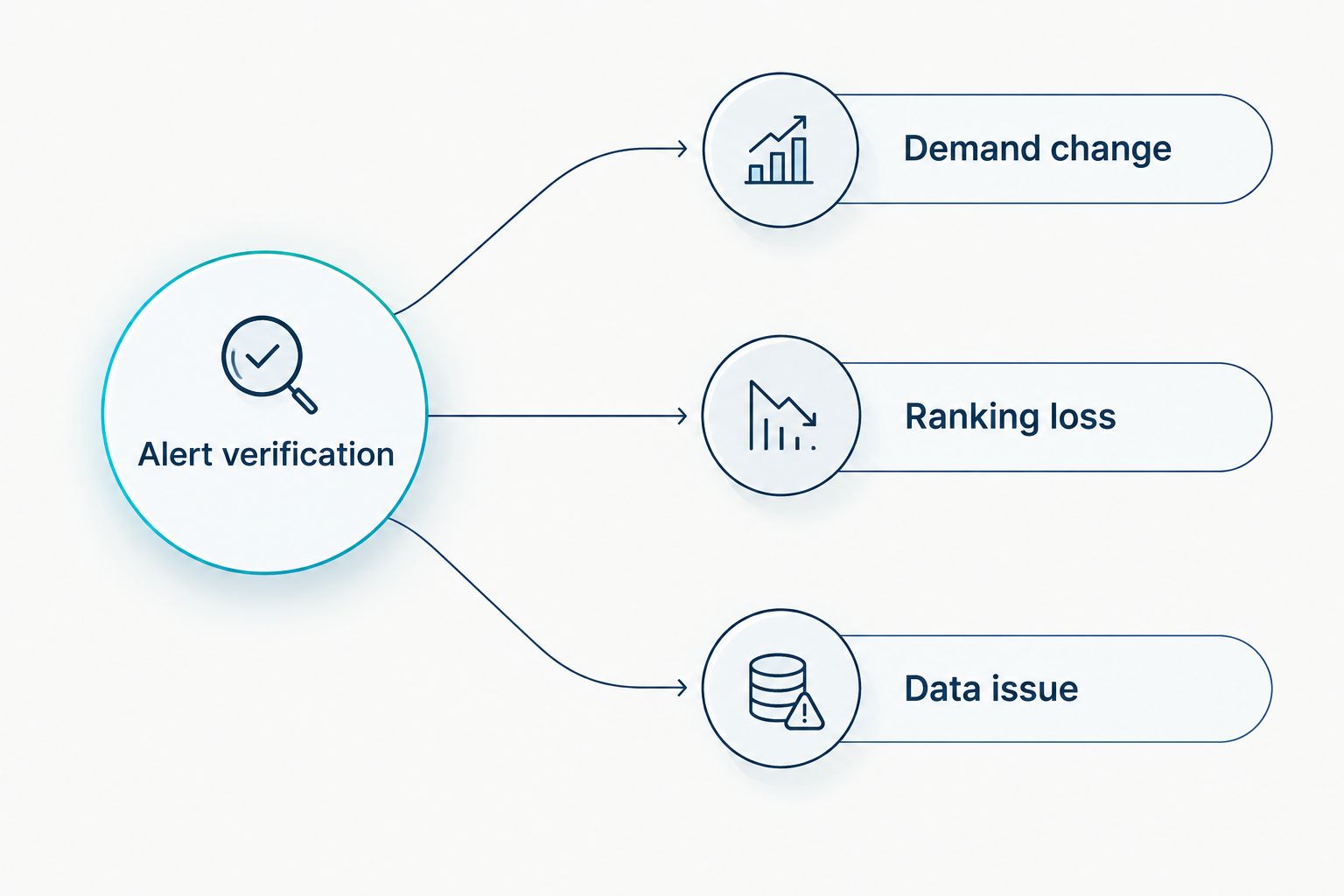
- Separate the outcome into Demand change, Ranking loss or Data issue before assigning a fix.
Demand change means impressions fell without a comparable position decline for the same important queries. Ranking loss requires checking those queries directly. Data issue covers incomplete periods, changed filters or missing returned rows.
Expected result: each alert has a documented cause or a defined investigation task. A lower page-average position alone does not identify which keyword lost visibility.
Second variant: flag losses for individual queries
For closer diagnosis, change dimensions: ['page'] to dimensions: ['page', 'query']. The script already builds its comparison key from every returned dimension, so the matching logic works for both versions.
Choose the scope before expanding your 2026 alert coverage:
| Workflow | Best for | Advantage | Limitation |
|---|---|---|---|
| Page-level alerts | Finding affected landing pages | Keeps the investigation focused on URLs | Query-mix changes can distort average position |
| Page-and-query alerts | Investigating specific search terms | Compares the same page-query pair | More rows; anonymised queries and omitted data limit coverage |
Use separate script projects if you want both workflows running together. That keeps their configuration and sent-period records independent.
Query-level alerts need their own baseline threshold. A setting suitable for an entire page can exclude useful individual terms. Review actual query volumes before lowering the minimum; do not replace one noisy inbox with another.
Search Console average position is an aggregate metric, not a fixed rank checked from one location. Neither variant replaces a separate rank-tracking workflow when you need controlled keyword observations.
Troubleshooting
- The request returns an access error. Confirm the executing account has access to the exact property. Check that the Search Console API is enabled in the Cloud project associated with the script, then reauthorise after scope changes.
- The comparison period is empty. Check the property identifier, reporting dates and available final data. Increase the buffer when necessary. Never convert an empty response into a zero-impression ranking alert.
- A page appears in the missing-row list. Apply the same page filter and dates in Search Console. Missing API rows are an investigation queue, not proof of deindexing or a complete traffic loss.
- No email arrives. Inspect Executions, recipient spelling and spam filtering. Check Apps Script email quotas. A failed execution and a successful run with no candidates are different states.
- The same incident returns each day. The script suppresses repeat sends for the same reporting period, not a continuing decline across new periods. Add incident tracking by page if you need one notification until recovery.
Customise your workflow
Prioritise commercial pages before widening the monitor. A page with lost impressions is not automatically a revenue problem; check the query intent and its role in generating enquiries or sales.
For your 2026 operational review, retain the alert periods, property, affected page, diagnosis and assigned owner. Add incident states such as open, investigating and resolved outside this starter script. That separates detection from task management.
Digital Womble Ltd's SEO consulting addresses lost search revenue, but this workflow is deliberately narrow: it flags candidates and cannot establish revenue impact or prescribe a technical fix.
Keep a dated configuration record for 2026. Threshold changes alter which incidents appear, so record the old setting, new setting and reason rather than silently changing the rule.
FAQ
How do I set up automatic ranking drop alerts in Search Console?
Use a scheduled script to retrieve Search Console data, compare completed periods and email matching declines. This guide uses Apps Script and requires both falling impressions and worsening average position.
Does falling impressions mean my rankings have dropped?
No. Impressions also change with search demand and query coverage, so inspect the same page-query pairs before diagnosing a ranking loss.
What thresholds should I start with?
This workflow starts with a 20% impression decline, 100 baseline impressions and 2 positions of deterioration across 7-day windows. These are configurable starter rules, not universal SEO benchmarks.
Can I receive an alert for a specific keyword?
Yes. Request page and query dimensions so the script compares the same page-query pair, but remember that Search Console does not expose every query.
Why does the alert use older reporting dates?
The workflow leaves a reporting buffer and requests final data to avoid comparing incomplete periods. Check the latest available data before choosing your buffer.
Does a missing page in the API response mean it is deindexed?
No. A missing returned row does not establish an indexing failure; check the page in Search Console and investigate indexing separately.
Will the script tell me how much revenue I lost?
No. Search Console provides search-performance metrics, not a page-level revenue diagnosis; connect the affected landing pages to your analytics and enquiry records separately.
One last thing
A recovered impression count does not prove recovered rankings. New queries can increase impressions while an important commercial query remains weaker.
For your 2026 recovery checks, revisit the original page-query pairs. Close the incident against the problem you identified, not whichever headline metric improved first.